Connect Claude or ChatGPT to your Nymiva season
The AI you already use can read your plan, your training and your Focus Lab, and propose changes you approve in Nymiva. Set it up in a minute, no code needed.
You already have an AI you talk to. Claude, ChatGPT, a coding assistant, whichever one is open on your screen most of the day. Until now it knew nothing about your training. Ask it whether tomorrow's session is a good idea and it would answer for a generic athlete, because that is the only athlete it could see.
Nymiva now speaks a standard that every major AI app understands, so the AI you already use can read your season directly. It sees your plan, your completed training, your thresholds, your Focus Lab and your events, the same way the Nymiva coach does. Connecting takes a minute and needs no code.
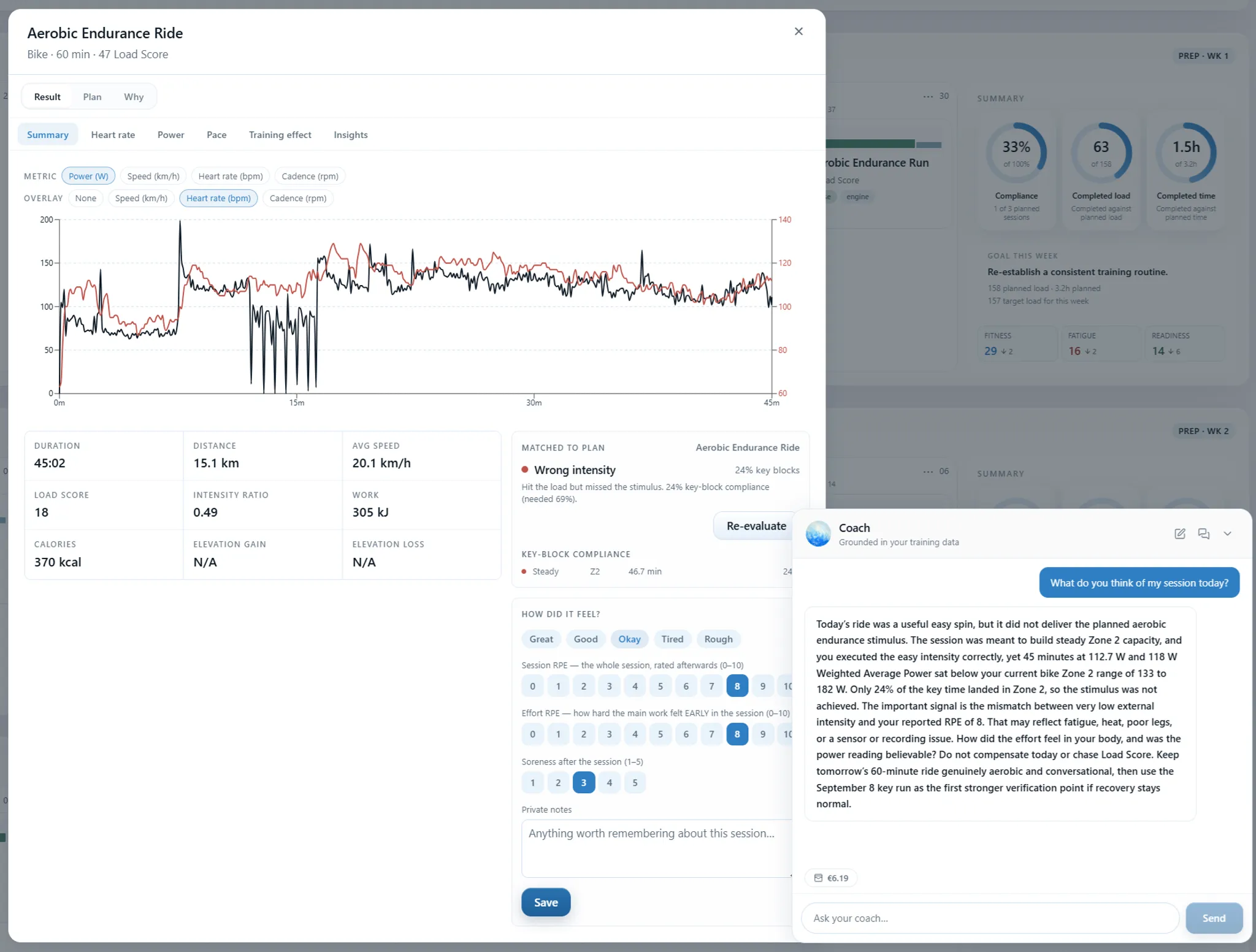
What your AI can see, and what it cannot do
Before the steps, the boundary, because it is the whole point.
Once connected, your AI can read your season plan, its training blocks and the sessions on your calendar. It can read the training you completed and how each session compared with what was planned, including Nymiva's verdict on whether the intended stimulus was achieved. It can read your performance analysis, your thresholds and what they rest on, your Focus Lab, your events and what each one demands, and your readiness where you have consented to health data.
It can ask for one kind of change. It can propose moving a session, skipping one, or adding one from Nymiva's vetted library. That proposal appears in Nymiva as a card that names which app asked. You approve it or reject it there. Nothing in your season moves because a conversation went well.
It cannot see your billing details, your card or your password. It never receives your Nymiva login. It cannot change your training without you approving the exact change first. And it cannot write or edit a workout, because every structure comes from the workout library and never from a model, however confident the model sounds.
Connect Claude
Claude's custom connectors are available on the Pro, Max, Team and Enterprise plans.
- In Claude, open Settings, then Connectors.
- Choose Add custom connector.
- Name it Nymiva and paste this address as the remote MCP server URL:
https://mcp.nymiva.com/mcp - Choose Add, then Connect.
- Claude sends you to Nymiva. Sign in if you are not already, read the consent screen, and choose Connect.
Back in Claude, start a new conversation and ask what your training looks like this week. The first answer should name your season, your current block and the next key session.
Connect Claude Code
If you use Claude Code in a terminal, one command registers the server:
`` claude mcp add --transport http nymiva https://mcp.nymiva.com/mcp ``
Then, inside a Claude Code session, type /mcp, pick Nymiva and follow the sign in. The browser opens on the same Nymiva consent screen. Approve it and the tools are available in every session from then on.
Connect ChatGPT
ChatGPT connects to remote servers through developer mode, which is available on Plus, Pro, Team, Enterprise and Edu plans.
- In ChatGPT, open Settings, then Connectors.
- Open Advanced settings and switch on Developer mode.
- Back in Connectors, choose Create.
- Name it Nymiva, paste
https://mcp.nymiva.com/mcpas the MCP server URL, and leave authentication on OAuth. - Choose Create, then connect. ChatGPT sends you to Nymiva to sign in and approve.
In a chat, enable the Nymiva connector from the tools menu and ask your question.
Connect any other AI app
Nymiva's server follows the Model Context Protocol over plain HTTPS, with OAuth for sign in. Any app that can add a remote MCP server can connect to it. In Cursor, VS Code, Windsurf and similar tools, add a server with this address and the app will walk you through the same Nymiva sign in:
`` https://mcp.nymiva.com/mcp ``
If an app asks for a transport, choose HTTP, sometimes called streamable HTTP. If it asks for a client id or secret, leave them empty. Nymiva issues those to the app itself during sign in.
What the consent screen is telling you
The consent page is where Nymiva checks who is asking. It shows the name the app claims for itself, the address it will send your data to, and one of three verdicts. Nymiva recognises this app and has checked where it sends data. Nymiva has not independently verified this app but can say where the data goes. Or Nymiva cannot tell who this app is.
The second verdict is normal for Claude and ChatGPT. It means the app registered itself with Nymiva rather than being vetted by hand, and the sentence names the place your data will travel to, for example claude.ai. If the app is running on your own computer, the screen says so, and your data stays on that machine.
Read that line before you press Connect. It is the one piece of information nobody else can check for you.
What to ask first
The connection is most useful when you ask the kind of question the Nymiva coach answers, with the freedom of an app you already use every day.
Ask what your current block is developing and why. Ask why tomorrow's session exists, and the answer should quote the block objective and the measured gap that motivated it, not a general theory. Ask how the last four weeks went, and the answer will separate sessions you completed from sessions that achieved their stimulus, because Nymiva makes that distinction and hands it over.
Ask what your race demands, leg by leg. Ask which readings your threshold rests on and how old they are. Ask whether Nymiva has anything waiting for your approval.
Then ask for a change. Tell it you can only train three days next week. A well behaved AI will read your availability first, propose moves that land on days you actually have time, and tell you plainly that nothing has changed until you approve it in Nymiva. That last sentence is the sign it understood the arrangement.
When the answers seem off
Your AI reads what Nymiva has. If a number looks wrong in the conversation, it is worth checking the same number in Nymiva, because the two are the same figure. A threshold that is months old is months old in both places. A readiness reading that is absent is absent in both places, and a good AI will say so rather than invent one.
If the AI proposes something odd, you lose nothing by ignoring it. The proposal expires on its own, and your calendar never moved.
Disconnecting
Every connection is listed in Nymiva under Settings, in the Sync and import section, with the app's name and the date it connected. Disconnect there and the app's next request is refused, whatever the app still believes about its own access. You can reconnect at any time from the app.
What this needs from you
An active Nymiva membership, including the free trial, and one athlete profile on the account. There is no separate plan and no extra charge. The connection belongs to the membership, in the same way the planning engine and the coach do.
If you have never used an AI app with connectors, Claude is the shortest path: two menus, one paste, one consent screen. If you already live in ChatGPT, developer mode is one switch away. Either way, the next question you ask about your training will be answered about you.